Fax.Plus
>
Email to Fax (HIPAA Compliant)

Send and Receive Faxes in Your Email Inbox

Works with Gmail, Outlook, Yahoo. Your email becomes a fax.

Fax.Plus Email to Fax enables you to securely manage fax communications right from your inbox. Send, track, and receive faxes via email from your phone or computer anytime, anywhere.

/ Overview

How does Email to Fax work?

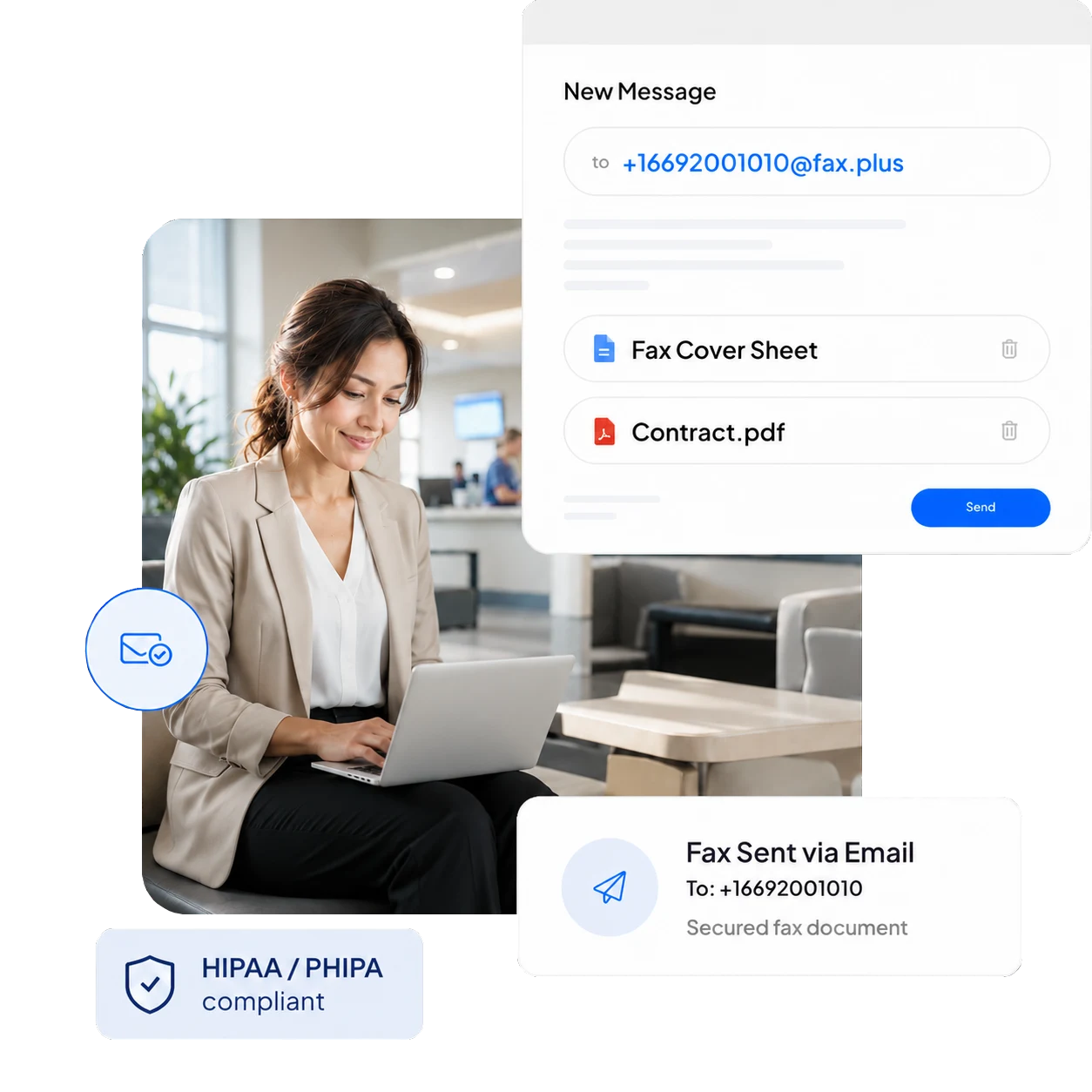
Sending a fax is now as easy as sending an email. Just compose a message, attach your document, and send it. Fax.Plus instantly converts your email into a fax and securely delivers it. To get started you simply need:

  • The destination's fax number.
  • Sign up for Fax.Plus account using the email address you'll fax from.

Sending PHI?

Send a HIPAA-compliant email-to-fax

‍

Get the Enterprise plan, enable Advanced Security Controls, sign your BAA, then send your document to [faxnumber]@tls.fax.plus. The address enforces TLS, so every email-to-fax is encrypted in transit.

/ How to

How to Send Fax from Gmail, Outlook, iCloud or Yahoo?

Fax.Plus integrates with Gmail, Outlook, and Yahoo, empowering you to send faxes directly from your email account. You can also have incoming fax documents delivered as attachments, and easily view delivery confirmations, all without a traditional fax machine.‍

Getting started: How to set up your email and Fax.Plus accounts

To initiate email to fax, begin by visiting the Fax.Plus website and selecting a plan tailored to your business needs. Once you've chosen a plan, follow these steps:

1
Create a Fax.Plus Account: Sign up for a Fax.Plus account and choose your preferred plan. Your account email address will be used for sending faxes.
2
Enable Email to Fax: Confirm that Email to Fax is enabled in your Fax.Plus Profile settings, and ensure you have enough credit or pages on your account for fax sending.
3
Under the tab for Faxing, find the box for Email to Fax.
4
Click on Edit.
5
Click on the toggles to Activate the options for Ability to Send Fax via Email and Include Email Content in Fax.
6
Click on Save

How to send Email to Fax on Gmail?

To initiate email to fax, begin by visiting the Fax.Plus website and selecting a plan tailored to your business needs. Once you've chosen a plan, follow these steps:

1
Click on Compose, as if you're about to send an email.
2
In the To field, include the destination fax number along with the country and area code, followed by "@fax.plus" For example: +16692001010@fax.plus
3
Any text entered in your email's Subject field will be added as a note in the Sent Faxes section on your Dashboard for that specific fax. You have the option to leave this field blank if you prefer.
4
Attach the files you want to send as fax. We support various formats including PDF, DOC, DOCX, XLS, XLSX, PNG, JPG, RTF and TIFF. If you would like to include a cover sheet, simply write the content of your cover sheet in the email. It will be treated as the first page of your faxes.
5
Click on Send. The delivery status will be sent to your email promptly.

How to send Email to Fax on Outlook?

To initiate email to fax, begin by visiting the Fax.Plus website and selecting a plan tailored to your business needs. Once you've chosen a plan, follow these steps:

1
Click on Compose, as if you're about to send an email.
2
In the To field, include the destination fax number along with the country and area code, followed by "@fax.plus" For example: +16692001010@fax.plus
3
Any text entered in your email's Subject field will be added as a note in the Sent Faxes section on your Dashboard for that specific fax. You have the option to leave this field blank if you prefer.
4
Attach the files you want to send as fax. We support various formats including PDF, DOC, DOCX, XLS, XLSX, PNG, JPG, RTF and TIFF. If you would like to include a cover sheet, simply write the content of your cover sheet in the email. It will be treated as the first page of your faxes.
5
Click on Send. The delivery status will be sent to your email promptly.

How to send Email to Fax on Yahoo?

To initiate email to fax, begin by visiting the Fax.Plus website and selecting a plan tailored to your business needs. Once you've chosen a plan, follow these steps:

1
Click on Compose, as if you're about to send an email.
2
In the To field, include the destination fax number along with the country and area code, followed by "@fax.plus" For example: +16692001010@fax.plus
3
Any text entered in your email's Subject field will be added as a note in the Sent Faxes section on your Dashboard for that specific fax. You have the option to leave this field blank if you prefer.
4
Attach the files you want to send as fax. We support various formats including PDF, DOC, DOCX, XLS, XLSX, PNG, JPG, RTF and TIFF. If you would like to include a cover sheet, simply write the content of your cover sheet in the email. It will be treated as the first page of your faxes.
5
Click on Send. The delivery status will be sent to your email promptly.

How to send Email to Fax on Apple Mail?

To initiate email to fax, begin by visiting the Fax.Plus website and selecting a plan tailored to your business needs. Once you've chosen a plan, follow these steps:

1
Click on Compose, as if you're about to send an email.
2
In the To field, include the destination fax number along with the country and area code, followed by "@fax.plus" For example: +16692001010@fax.plus
3
Any text entered in your email's Subject field will be added as a note in the Sent Faxes section on your Dashboard for that specific fax. You have the option to leave this field blank if you prefer.
4
Attach the files you want to send as fax. We support various formats including PDF, DOC, DOCX, XLS, XLSX, PNG, JPG, RTF and TIFF. If you would like to include a cover sheet, simply write the content of your cover sheet in the email. It will be treated as the first page of your faxes.
5
Click on Send. The delivery status will be sent to your email promptly.

How can you receive faxes in your email?

You can receive faxes in your Fax.Plus Inbox and choose email notifications with or without attachments. General notification settings offer PDF or TIFF attachments. HIPAA/PHIPA accounts with Advanced Security Controls start with notification-only emails. On an eligible Enterprise account with a signed BAA or PHIPA Service Provider Agreement, the owner or admin enables attachments and accepts consent first; each user then enables attachments for their own notifications. Delivery requires TLS 1.2 or above at the receiving mail server.

See Email Attachments for HIPAA & PHIPA Compliant Fax.Plus Accounts for setup.

Additionally, you can set up your preferences in a way that prevents faxes from being stored in Fax.Plus, ensuring they are solely transmitted to your email.

Can you forward your received faxes?

Faxes received on a specific number are exclusively accessible to a single user within the Fax.Plus panel. Nevertheless, you do have the option to automatically forward received faxes to up to five different email addresses.

1
Login to your Fax.Plus account, and go the Profile section on your Dashboard.
2
Under the tab for General, find the box for Notifications. Click on Edit.
3
Next to Email, click Modify. Set Received Fax Notification to On (notify and attach fax to message) to send the fax document. On (only notify) sends an alert without the attachment. For HIPAA/PHIPA accounts with Advanced Security Controls, attachments are opt-in after owner/admin consent and individual activation; the receiving mail server must support TLS 1.2 or above.
4
Enable Multiple Email Recipients and add up to five authorized email recipients. For HIPAA/PHIPA attachments, each receiving mail server must support TLS 1.2 or later.
5
Click on Confirm to save your changes.

Steps to Fax from Email

Sending a fax from your favorite email platform has never been simpler. Whether you use Gmail, Outlook, iCloud, or Yahoo, Fax.Plus converts your email into a secure fax in seconds. Here's how to send a fax via email from your preferred inbox.

Email

Fax from Gmail

Send and receive faxes right from Gmail. Email your document to a fax number and get secure delivery confirmations.

Fax from Outlook

Send a fax from Outlook without a fax machine. Attach your file, address a fax number, and track delivery in your inbox.

Fax from Yahoo Mail

Fax through email with Yahoo Mail in seconds. Send a message to a fax number, attach a document, and send a secure fax.

Fax from iCloud Mail

Fax from iCloud Mail across Apple devices. Send and receive faxes from your Mac or iPhone, no extra app needed.

Send Faxes via Email from the following Platforms

Send a fax from email on any platform, no fax machine required. Fax.Plus turns your email and its attachments into a secure fax from your computer, iPhone, iPad, or Android device.

Email to Fax on Computer

Send and receive fax on your email from computer using the Fax.Plus WebApp or Fax.Plus desktop app designed for macOS or Windows devices.

Email to Fax from iPhone

Email to fax directly from your iPhone or iPad using the Fax.Plus app, offering seamless functionality right from your mobile device.

Email to Fax from Android

Email to fax directly from your Android phone or tablet using the Fax.Plus app, with send, receive, and delivery tracking wherever you go.

Effortless Email to Fax with Fax.Plus

Enjoy effortless, secure faxing directly from your inbox. Fax.Plus streamlines your workflow, saves money, and integrates seamlessly into your daily apps.

Secure Fax

Eligible HIPAA/PHIPA accounts can use enforced TLS. Standard email fax does not enforce TLS.
Keep Your Current Fax Numbers

Super easy to use

Fax from email apps or your browser in seconds, with no downloads or fax machine needed.
a blue icon with arrows pointing in different directions

Cross-Platform

Send faxes via email from any device, including Windows, Mac, iPhone, iPad, and Android.
Seamless Integrations

Cost savings

Cut paper, ink, fax machine, and phone-line costs with one simple online faxing subscription.
Web

No fax machine

Send a fax online from your inbox, multiple documents at once, without any hardware or phone line.
a blue puzzle piece on a white background

Seamless Integration

Easily integrate Fax.Plus with apps like Slack, Microsoft Office/Teams and Google Workspace.
a blue clock icon on a white background

Real-Time Status

Get instant delivery confirmations in your inbox every time you send a fax from email.
a phone with a cross on it

Toll-Free Numbers

Boost business credibility with a toll-free online fax number for sending and receiving faxes.
Hashtag icon

Number Porting

Port your existing fax number to Fax.Plus with no downtime and keep faxing without interruption.

Frequently Asked Questions

Can you email to a fax number?

arrow navbar

Yes. With Fax.Plus you can email a fax number directly: compose a new email, put the destination number followed by @fax.plus in the To field (for example +16692001010@fax.plus), attach your document, and send. Fax.Plus converts the email into a fax and delivers it over the phone network, then emails you a delivery confirmation. You can send an email to a fax number from any device or operating system, anywhere with an internet connection, with no fax machine required.

Is email-to-fax HIPAA and PHIPA compliant?

arrow navbar

Standard email-to-fax on @fax.plus is intended for non-HIPAA use. For protected health information, Fax.Plus offers HIPAA and PHIPA compliant email-to-fax on the Enterprise plan: faxes are sent to a dedicated, TLS-enforced address (@tls.fax.plus), backed by a signed BAA, encryption, access controls, and full audit trails. Sending PHI from a regular email inbox, without these safeguards, is not a compliant method on its own. See our HIPAA-compliant fax page for the full setup.

Can you send a fax through email?

arrow navbar

Yes. Sending a fax through email works on any provider: Gmail, Outlook, Yahoo, or Apple Mail. Address a new email to the recipient's fax number followed by @fax.plus, attach your file (PDF, DOC, DOCX, XLS, XLSX, PNG, JPG, RTF or TIFF), and send. Fax.Plus turns the email and its attachments into a fax and confirms delivery back to your inbox.

How can you email a fax machine?

arrow navbar

The first step to emailing a fax machine is to set up a Fax.Plus account. This enables you to send emails to fax machines and faxes to email accounts. Just remember to create your account with the same email address you intend to use to send faxes. Once you've set up your Fax.Plus account, compose your email and enter the recipient fax machine number in the 'to' field. Next, find and attach any relevant documents. Now, send the email. It will quickly be delivered to the relevant fax machine, and you will receive a delivery notification.

Can you fax to an email?

arrow navbar

Yes. The sender sends the fax to a fax number linked to an online fax service, rather than directly to an email address. With Fax.Plus, the recipient can receive email notifications and include the fax document when attachments are enabled. For HIPAA/PHIPA accounts with Advanced Security Controls, attachments are opt-in after owner/admin consent and individual activation; the receiving mail server must support TLS 1.2 or above.

Can I fax from my Gmail?

arrow navbar

The great thing about Fax.Plus is that it is integrated with Google. This means that all users can send faxes from Google applications such as Gmail, Google Docs, and Google Drive. To use this feature, you need to register for a Fax.Plus account with your Gmail account. From here, you can then install the Google Workspace extension. Once you have completed this process, you will not only be able to send a fax from your Gmail account using @fax.plus, but you will also be able to seamlessly send faxes from Google Drive, Google Docs and Sheets.

How to send a fax via email Outlook?

arrow navbar

Fax.Plus integrates with Outlook, making it easy to fax documents directly from your email. To use this feature, first sign up for a Fax.Plus account with the email address you use for Outlook. Next, compose an email in Outlook, attach the document you wish to fax, and address it to your recipient’s fax number followed by @fax.plus. Once you hit send, Fax.Plus converts your email into a fax and securely delivers it to the recipient’s fax machine. You’ll receive a confirmation directly in your inbox.

How to receive fax to email?

arrow navbar

Choose a paid Fax.Plus plan with a fax number, then configure received-fax email notifications. Select On (notify and attach fax to message) to include the fax document, or On (only notify) for an alert without it. For HIPAA/PHIPA accounts with Advanced Security Controls, attachments are opt-in after owner/admin consent and individual activation; the receiving mail server must support TLS 1.2 or above. You can also open received faxes directly in Fax.Plus.

Start faxing now.

Enjoy Email to Fax, sign up today!
Just be sure to use the email address you'll want to fax from when registering your account.

Partner with us!

Join our affiliate program and deliver exceptional online faxing solutions to your audience.
Become a Partner