


Fax App for Microsoft Teams
Bring Fax.Plus into your daily workflow with instant status updates and new fax alerts directly inside Microsoft Teams.

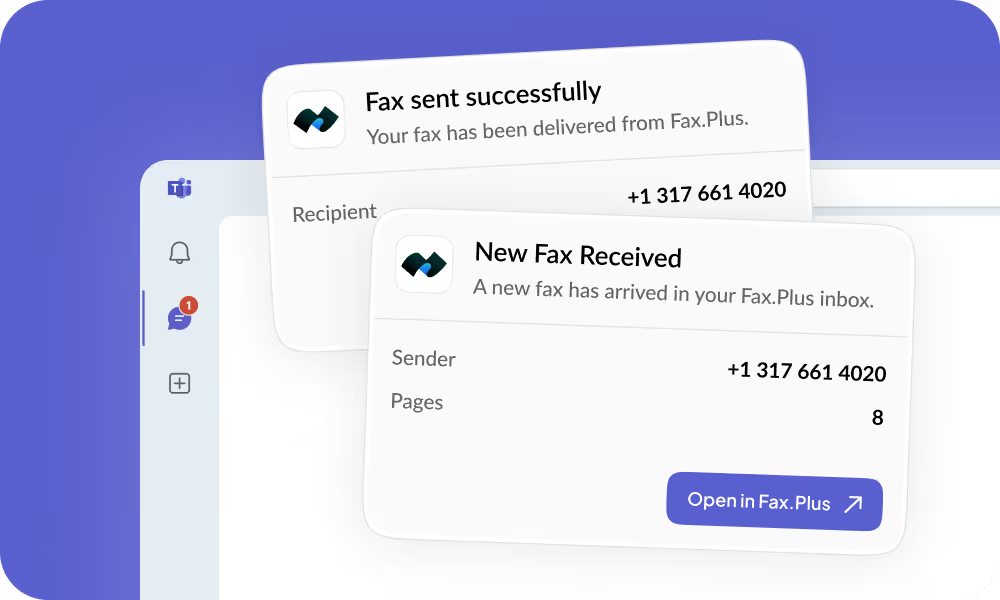
Get your fax right in MS Teams
The Fax.Plus app for Microsoft Teams allows Business and Enterprise users to receive instant notifications for incoming faxes and status updates for sent faxes directly in their desired channels or chats. Users can choose to only receive notifications in Teams and keep faxes encrypted in their Fax.Plus archive.

Never miss a critical document again
- Instant ping for every incoming fax, no more checking the web app
- Sender and recipient number at a glance
- One-click link to view or download the document securely in MS Teams or Fax.Plus
- Route notifications to any channel: shared team inbox or individual DMs
Confirm delivery without leaving Teams
- Get notified the moment a fax is delivered or fails
- Direct link to the failed fax in Fax.Plus, where you can retry sending.
- Delivery details: recipient number and status, with a link to the full record in Fax.Plus.
- Shared visibility for team admins and individual members
4 steps to enable Fax.Plus in Microsoft Teams
Step 1: Install the app
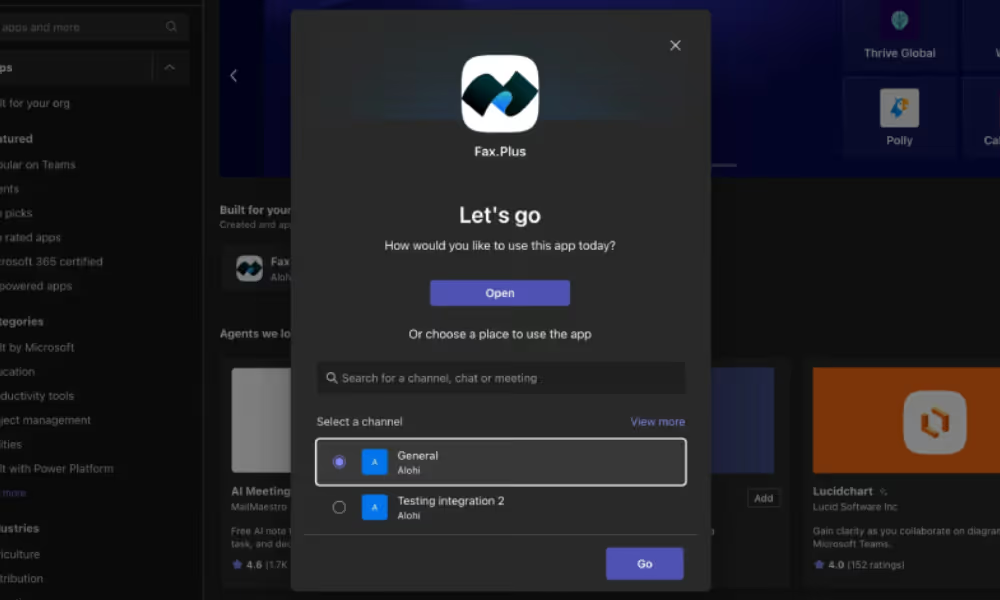
Start by adding Fax.Plus to your Microsoft Teams workspace. Open Teams and click Apps in the left sidebar. In the search bar, type Fax.Plus and select the app from the results. You can also find it directly on Microsoft AppSource if you prefer to install from your browser.
Click Add, then decide where fax notifications should land. You have two options:
- Add to a team to post notifications in a specific channel, visible to all channel members.
- Add to a chat to keep notifications in a private or group conversation.
Pick the option that fits your workflow. A dedicated channel like #fax-notifications keeps things organized if multiple people in your team need visibility.
Blocked?
If Fax.Plus does not appear in the search results, your organization has restricted third-party app installations. Contact your IT administrator and ask them to approve Fax.Plus in the Microsoft Teams Admin Center. This is a one-time admin action and does not affect other apps in your workspace.
Step 2: Connect your account

Once the bot is added to your channel or chat, it will automatically send a welcome message. This message includes a Sign in button: click it to begin linking your Fax.Plus account.
You will be redirected to a Fax.Plus sign-in page. Enter your credentials and confirm the authorization request. Once completed, the bot posts a confirmation message in the channel to let you know the account is successfully linked.
From this point on, the bot knows which Fax.Plus account to pull notifications from for this specific channel or chat.
Blocked?
If you see a "You don't have permission to use this app" message, one of two things is happening: either your Fax.Plus account is not on a Business or Enterprise plan, or your account role is not Owner or Admin. Both conditions are required. Check your plan and role in your Fax.Plus account settings before trying again.
Step 3: Authorize the integration
.gif)
The sign-in step confirms your identity, but you still need to activate the connection between Fax.Plus and this specific Teams channel or chat. To do this, type @Fax.Plus connect directly in the channel or chat where the bot was added.
The bot will respond with a link redirecting you to a web page where you complete the final authorization. Follow the on-screen steps to confirm the connection.
Once done, the integration is active and the channel is ready to receive fax notifications.
Note
Each Teams channel or chat can only be linked to one Fax.Plus account at a time. If your team uses multiple Fax.Plus accounts, each one needs its own dedicated channel with its own bot instance.
Step 4: Customize notifications
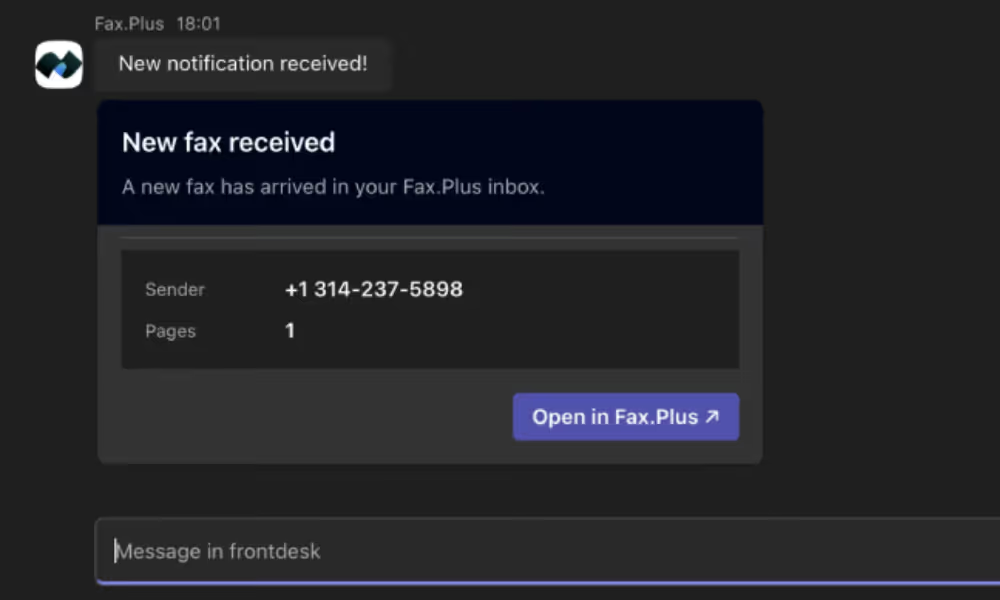
With the integration active, you can control exactly which fax events trigger a notification in Teams. In the Fax.Plus web app, navigate to Settings > Faxing > Notifications. From there, toggle on or off the events that matter to your team: incoming faxes, successfully sent faxes, or failed deliveries.
Each notification that appears in Teams includes the sender or recipient number, the fax status, a direct link to view the document in Fax.Plus, and optionally the fax file itself as an attachment when it is within the supported file-size limit.
Take a moment to send a test fax after completing this step, either by faxing yourself or asking a colleague to send one. A notification should appear in your Teams channel within a few seconds, confirming everything is working correctly.
Not seeing notifications?
First, check that at least one notification type is enabled in Settings > Faxing > Notifications. Then confirm the bot is properly signed in by typing @Fax.Plus status in the channel. If the bot responds with an "not connected" message, go back to Tab 2 and repeat the sign-in process.
FAQ
Which Fax.Plus plan is required for the Microsoft Teams integration?

Can I connect more than one Fax.Plus account to the same Teams channel?
What happens if a fax fails to send?
Do faxes stay secure if I only use Teams for notifications?
Explore more ways to connect Fax.Plus
Microsoft Teams is one way to bring faxing into your team's workflow. Here's how to connect other tools, tighten up compliance, and get the fax basics down.
Bring faxing into Microsoft Teams.
Already on Fax.Plus? Connect your Business or Enterprise account to Teams in a few clicks using the Install App button above. New here? Create an account to get started.
Partner with us!




Confédération Suisse
Confederazione Svizzera
Confederaziun Svizra
Swiss Confederation
Innosuisse - Swiss Innovation Agency


